
Add a YouTube Video to a WordPress Page Using Divi
This tutorial explains how to embed a YouTube video into a WordPress page using the Divi visual builder. It ensures the video is added correctly, saved, and displayed on the live page. We add links from YouTube as they are great for SEO.
Other file types are likely to be too large to add.
Key Steps
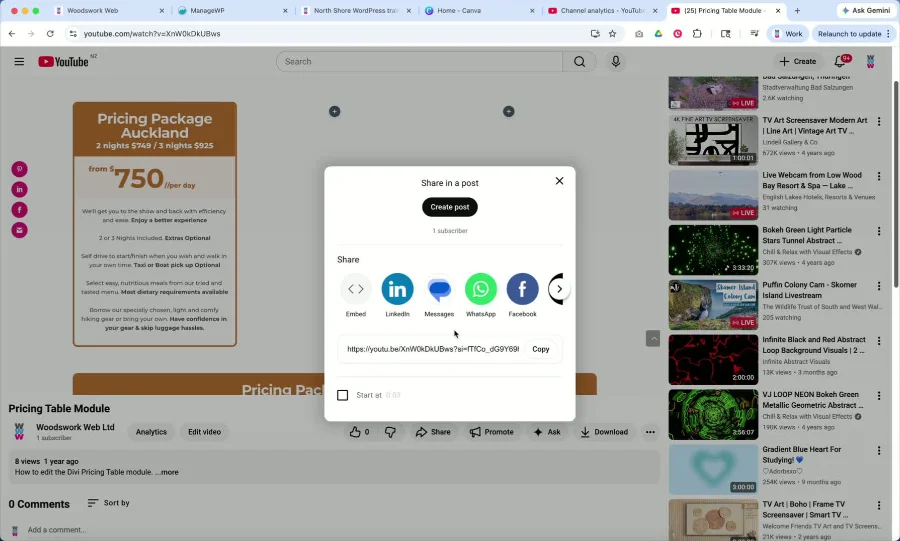
1. Copy the YouTube video link 0:12
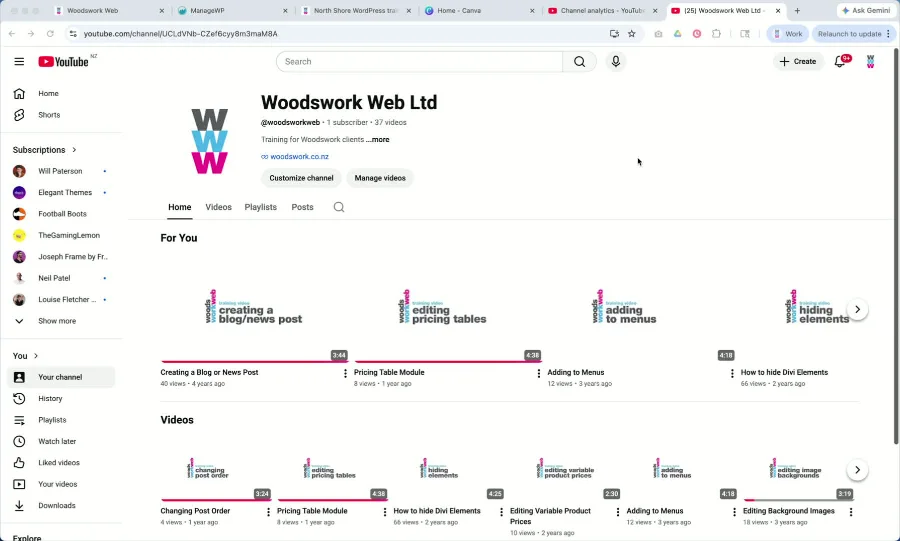
Open the desired YouTube video.
Hover over the video and pause it if it starts playing automatically.
Click the Share button.
Copy the generated YouTube link.
Close the share dialog once the link is copied.
2. Open the WordPress page in the Divi Visual Builder 0:31
Return to your WordPress website.
Open the page where you want the video to appear.
Click Enter Visual Builder to begin editing the page.
Confirm you are in the correct page before adding content.
3. Add a Video module to the page 0:51
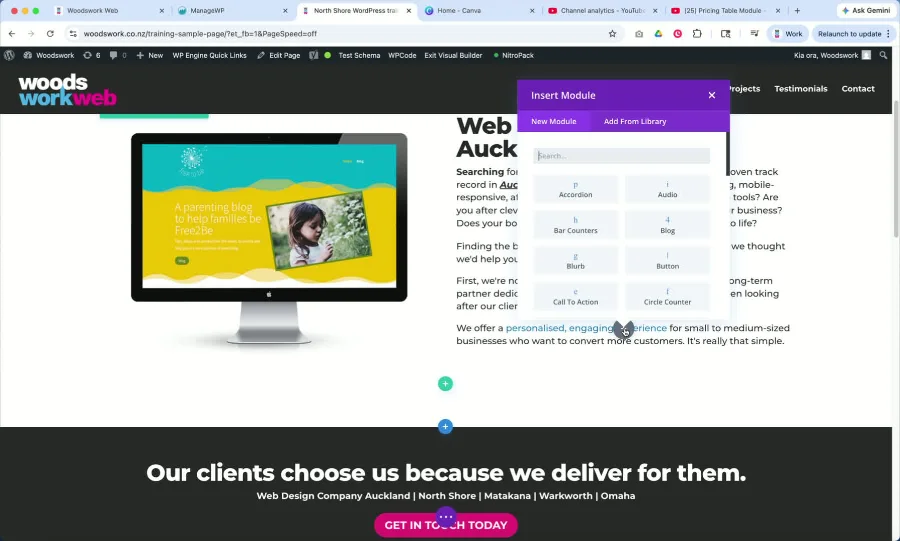
Hover over the area where the video should appear.
Click to add a new module.
Select the Video module from the module list.
Allow Divi to load the default placeholder content.
4. Insert the YouTube URL into the module settings 1:17
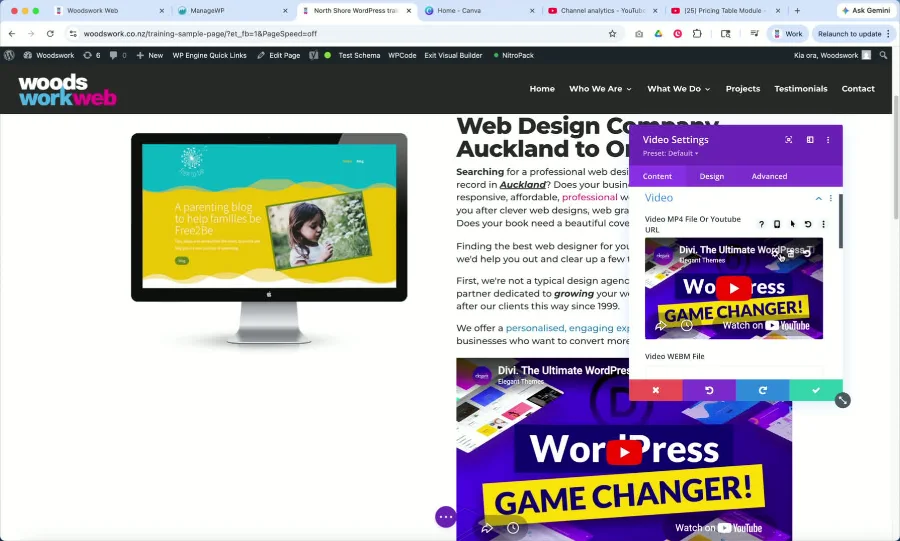
Open the module’s Settings.
Choose the option to Insert from URL.
Paste the copied YouTube link into the URL field.
Click Insert to apply the link.
Verify the video preview or link appears in the module.
5. Save the page changes 1:38
Click Save to store the updated page content.
Confirm the video module remains in place after saving.
If prompted, save any additional builder or page settings.
6. Review YouTube display options and limitations 1:56
Be aware that standard YouTube embeds may show YouTube branding, buttons, or related elements.
If a cleaner, branded video display is required, consider a paid YouTube option or an alternative platform such as Vimeo.
For most websites, the standard YouTube embed is sufficient.
7. Exit the visual builder and verify the live page 2:36
Exit the Divi Visual Builder.
View the live page to confirm the video displays correctly.
Check that the embedded video plays as expected and appears in the intended location.
Compare the result to other training videos or page examples if needed.
Cautionary Notes
Do not paste the wrong URL; ensure the copied link is the exact YouTube share link for the intended video.
The default YouTube embed may display branding, suggested videos, or buttons that cannot be removed without a paid option.
If the video does not appear correctly, re-open the module settings and confirm the URL was inserted properly.
Always save before exiting the builder to avoid losing changes.
Tips for Efficiency
Copy the YouTube link before opening the page editor to reduce back-and-forth navigation.
Use the Divi Visual Builder’s module search to quickly find the Video module.
After inserting the URL, preview the module immediately to catch errors early.
If you frequently embed videos, keep a checklist of approved video links and page locations for faster publishing.