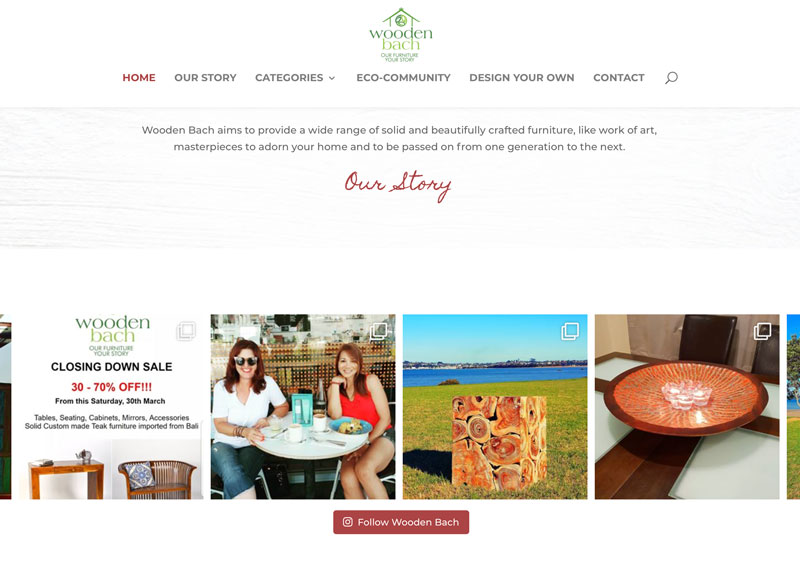
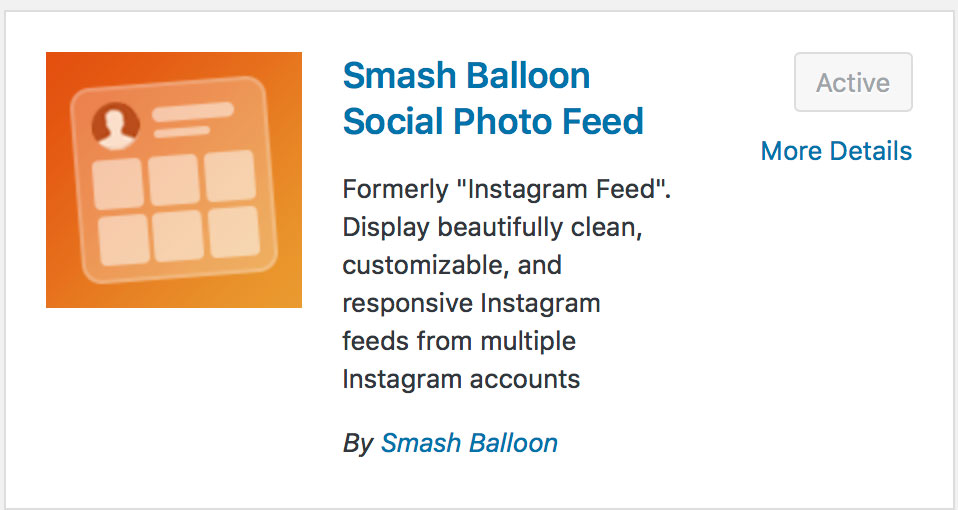
We use the Instagram Feed plugin by Smash Balloon to integrate an Instagram feed.
It is free but also has a Pro version available.
To integrate you need to be logged in to the clients Instagram feed for the feed to be accessable on the site backend.
Instagram login > Add & activate Instagram Feed plugin > Configure settings
** UPDATE This is now called Social Photo Feed
I tend to set the measurements to 100% height and width.
Otherwise there will be a scrolling menu added to the frame.
And that’s it!
Once you exit the site remember to log out of Instagram and back in under your own account!
Why Smash Balloon sometimes needs to be reconnected
If you’re using the Smash Balloon Instagram Feed plugin, you might occasionally notice that your feed stops displaying or shows a connection error. This usually happens when Instagram updates its security tokens or permissions, which automatically disconnects the link between your website and your Instagram account.
It’s not a fault with the plugin itself — rather, it’s part of Instagram’s data protection process. Smash Balloon simply requires you to relink your account so it can continue to access your latest posts. In most cases, reconnecting only takes a minute or two through the plugin’s settings panel.
Keeping your plugin and WordPress core up to date helps reduce how often this happens, but it’s still a good idea to check your feed regularly. If you notice your feed has disappeared after a plugin or platform update, relinking usually restores it straight away.
At Woodswork, we recommend including this as part of your routine website maintenance, especially if your Instagram feed plays a key role in your homepage or portfolio display.